How to Buy Bitcoin Everlight (BTCL) on PC & Mobile
This guide provides a step-by-step walkthrough for participating in the Bitcoin Everlight presale and activating your Shards. Whether you are using a desktop browser or your mobile device, the process is designed for maximum security and ease of use.
Step 1: Access the Launch Dashboard
The first step is to enter the official ecosystem through the Bitcoin Everlight website.
On PC: Navigate to bitcoineverlight.com. You will see a large "Open Dashboard" button in the center of the screen or a "Buy Now" link in the top-right navigation bar.
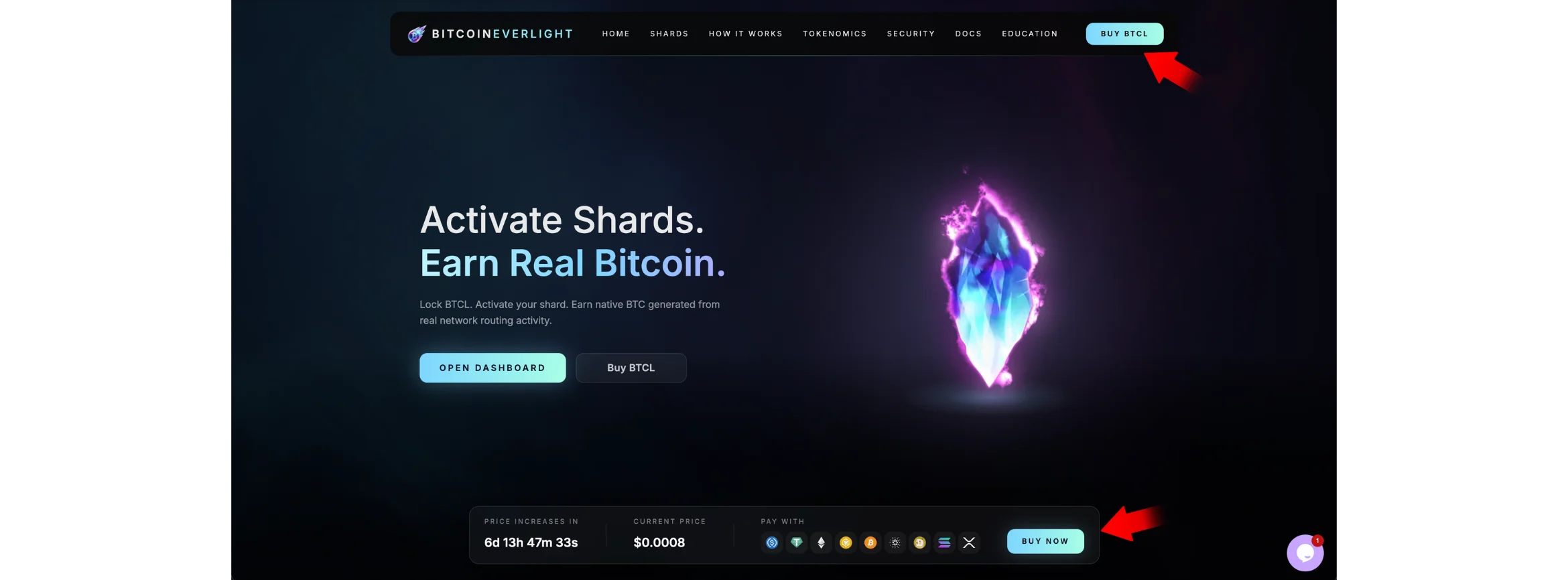
On Mobile: Open the site in your browser. Tap the "Open Dashboard" button located below the "Activate Shards" section on the hero banner. Alternatively, tap the hamburger menu (three horizontal lines) in the top right and select "Buy Now" from the list.

Step 2: Securely Connect Your Wallet
Your wallet acts as your identity and your secure storage for BTCL tokens.
Important: All supported wallets follow the same connection process.
On PC: Use your wallet through the browser extension (such as MetaMask or Trust Wallet extension).
On Mobile: Use the wallet’s built-in browser inside the wallet app (for example MetaMask or Trust Wallet browser) for the smoothest connection experience.
On PC: Click the "Connect Wallet" button in the top right. A modal will offer MetaMask or WalletConnect. Choose the network that matches your wallet (Solana or EVM/Ethereum). A popup will appear in your browser extension, click "Sign" or "Confirm" to verify your account ownership.
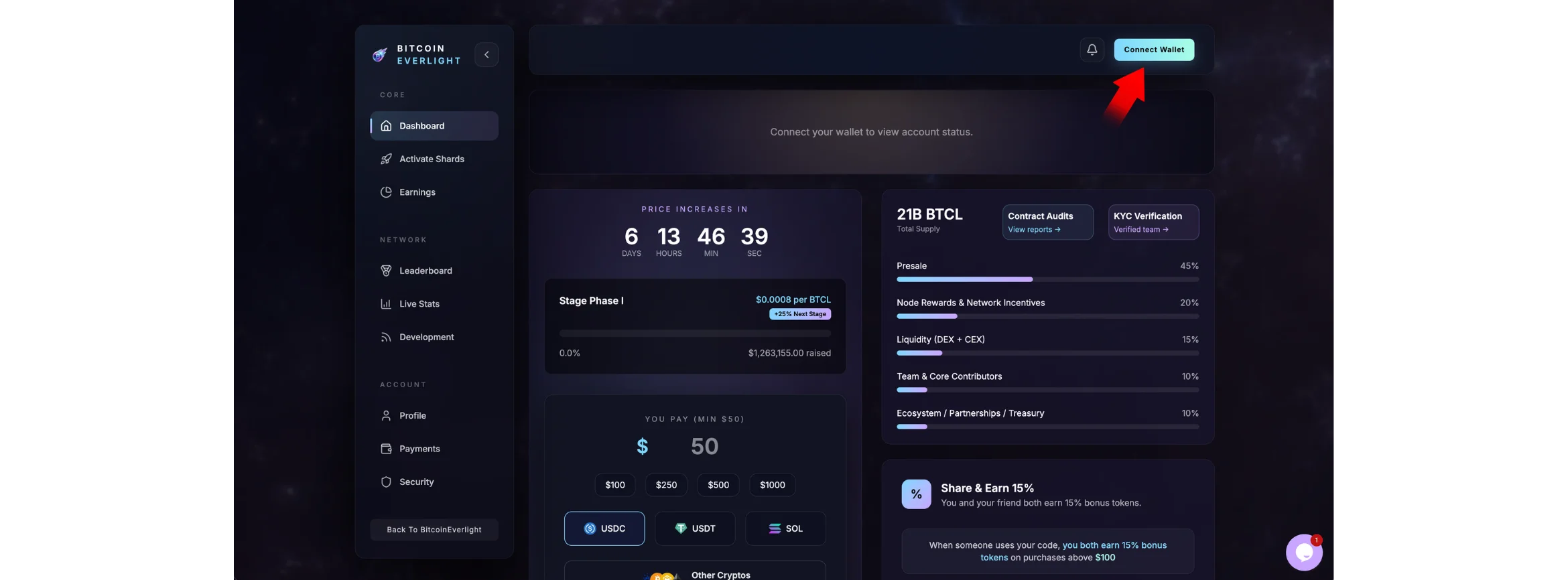
On Mobile: Tap "Connect Wallet." MetaMask Users: It is highly recommended to use the MetaMask in-app browser. Paste the URL directly into the wallet's browser for a seamless signature flow.
WalletConnect: If using a different mobile wallet, your wallet logo and name will show up to connect but if it wasn't in the options, choose WalletConnect. You will be prompted to "Deep Link" to your wallet app to approve the connection. Ensure you return to your browser after signing the verification.

Step 3: Configure Your Purchase
Shard Activation Tiers:
Your Shard tier is determined by your total USD contribution during presale:
• Azure Shard – Activated at $500+ commitment
• Violet Shard – Activated at $1,500+ commitment
• Radiant Shard – Activated at $3,000+ commitment
Higher tiers unlock higher presale reward rates and greater participation in the network.
Once connected, your dashboard will display your current status (initially "Dormant").
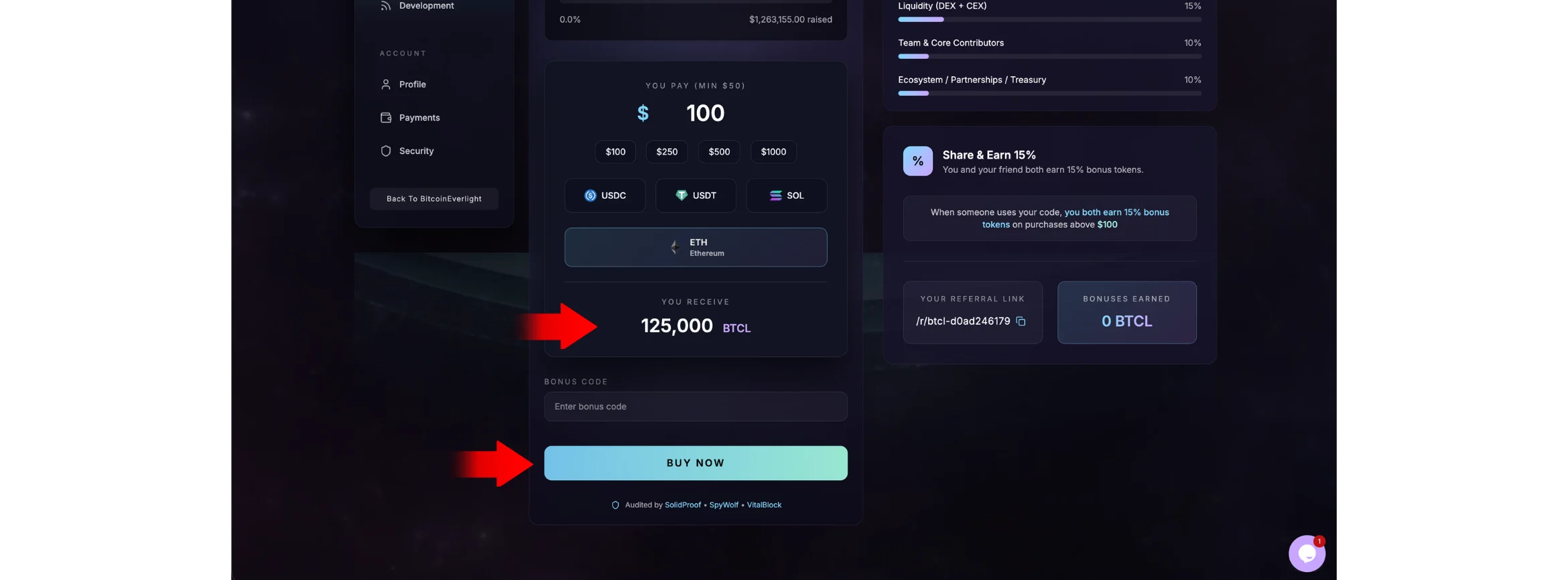
Enter Amount: In the "You Pay" field, enter your desired contribution amount (Minimum $50). You can also use the quick-select buttons ($100, $250, $500, $1000).
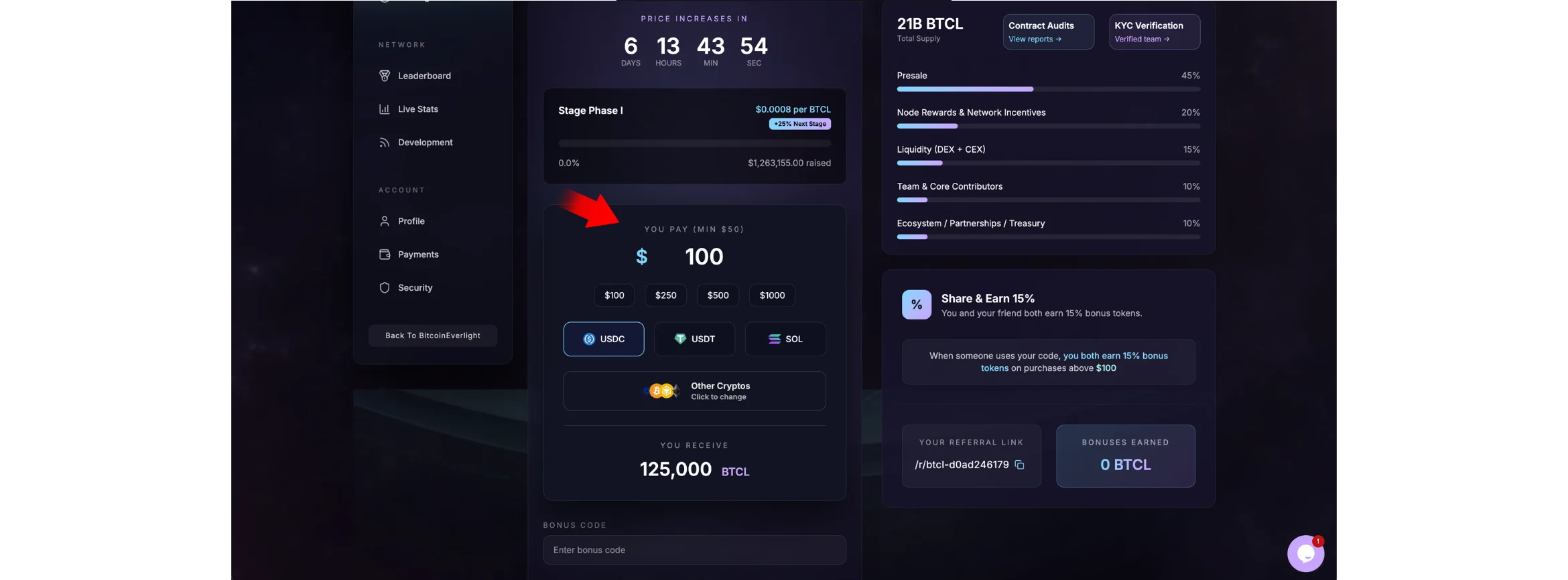
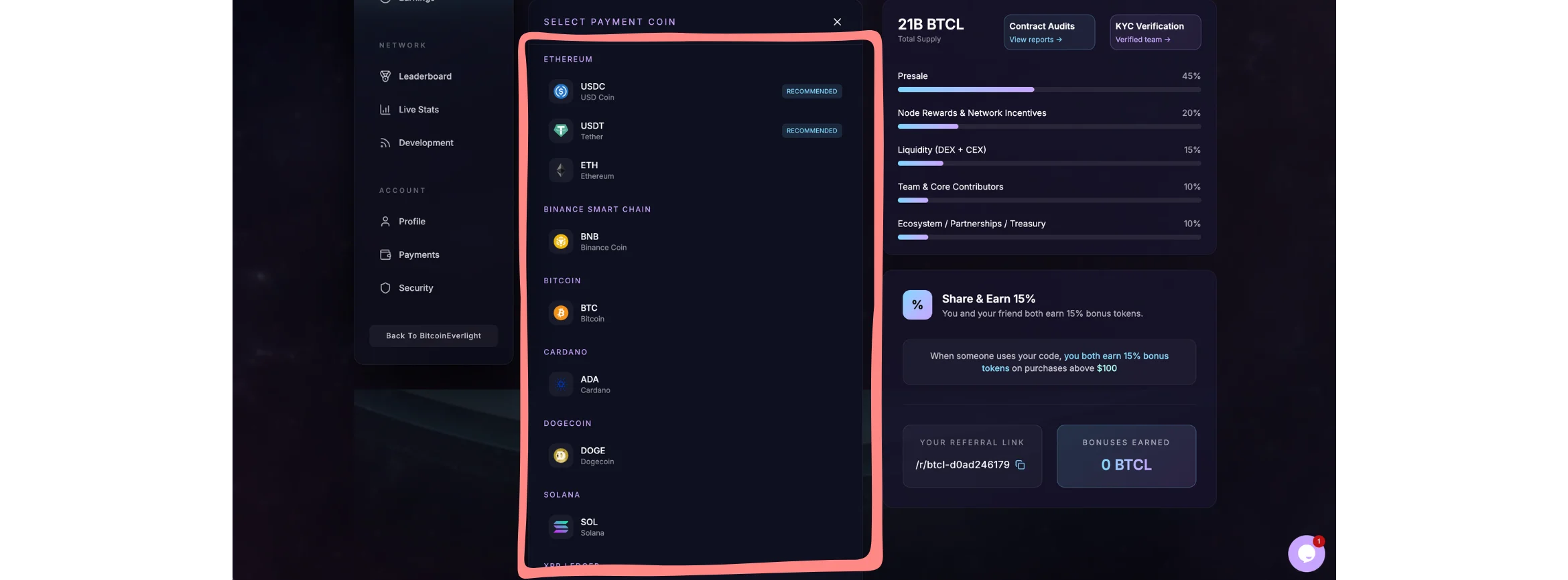
Select Payment Method: * Direct Options: You can instantly select USDC, USDT, or SOL.
Advanced Options: Tap/Click "Other Cryptos" to view a full menu of supported assets including BTC, ETH, BNB, DOGE, and more across various blockchains.
Review Allocation: The "You Receive" section will automatically calculate your BTCL allocation based on the current stage price (e.g., $0.0008).
Step 4: Finalize the Payment
Click the large "BUY NOW" button to generate your unique payment details.
The Payment Window: A modal will appear with a QR code and a unique deposit address and a 60-minute timer.

PC Execution: Copy the Deposit Address and paste it into your wallet's "Send" field. Ensure you send the exact crypto amount specified.
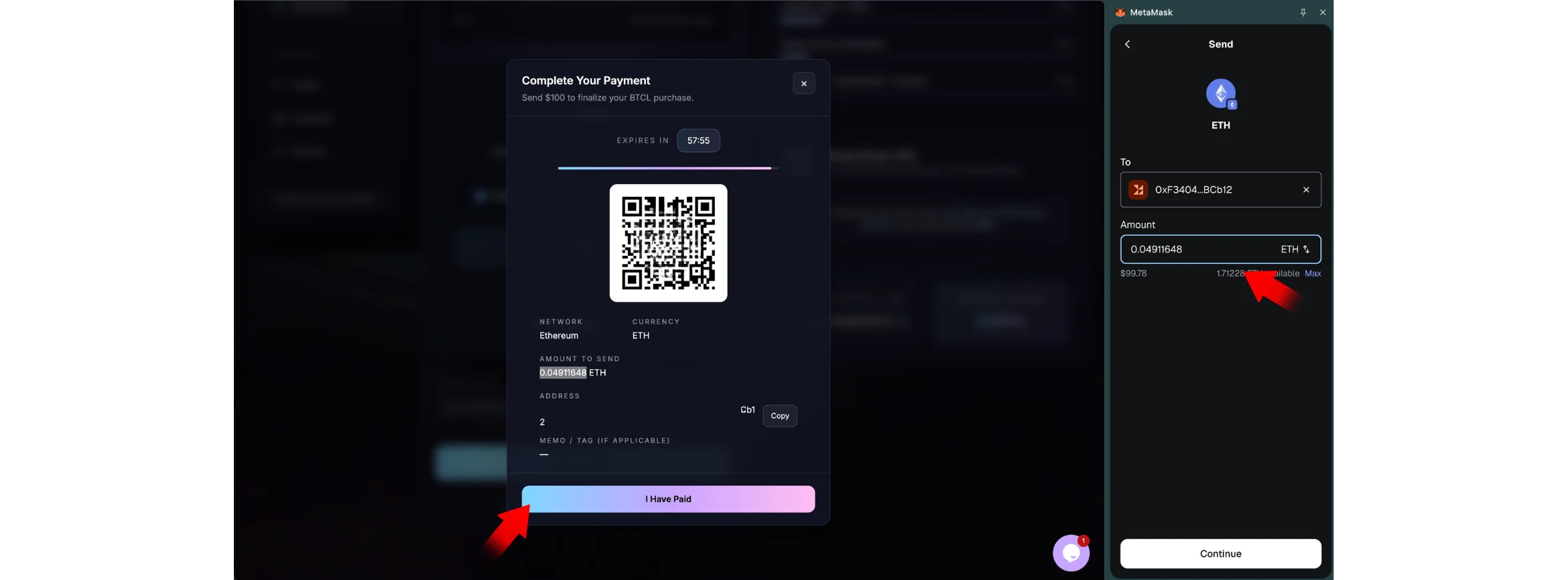
Mobile Execution: Tap the copy icon next to the address, then switch to your wallet app to complete the transfer. Alternatively, if you have a second device, you can simply scan the QR Code displayed on the screen.

CRITICAL STEP: After you have sent the funds from your wallet, you must return to the Everlight Dashboard and click the "I Have Paid" button. This manually triggers the network to begin indexing your transaction.
Step 5: Verify Activation & Earnings
Shard Activation:
During presale, users acquire BTCL tokens. Shards are not purchased directly. Instead, a Shard activates automatically once your total USD commitment reaches the required tier threshold.
Track Progress: Navigate to the "Payments" tab. On PC, this is in the left sidebar; on Mobile, tap the account icon or menu to find it. Your transaction will move from "Pending" to "Confirmed" once validated on the blockchain.
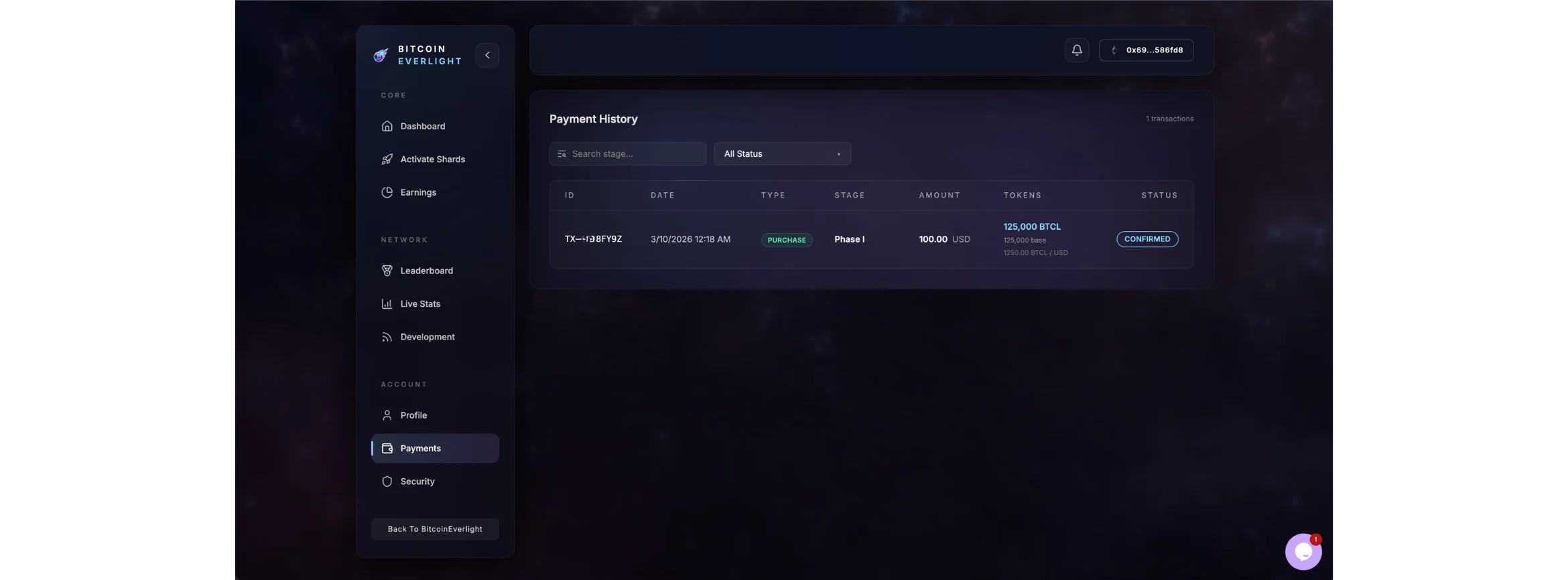
Check Shards: Once confirmed, your total committed value is updated and your Shard tier activates automatically when the required threshold is reached.
Presale Rewards:
Once your Shard activates:
• Rewards begin immediately
• Rewards are paid in BTCL tokens
• Each Shard tier has a fixed APY during presale
Rewards continue accumulating throughout the presale period.
For support or technical assistance, please visit the official Bitcoin Everlight Website and chat with the customer support.